

There’s a real chance your PC is running with well below its RAM potential. Not because of a defect. Not because of a virus. But because of a setting most people have never heard of—and which comes disabled by default on almost all motherboards on the market.
It’s called XMP (in the Intel world) or EXPO (in the AMD world). And if you’ve never enabled it, it’s very likely that you’re paying for fast RAM and using it at the speed of basic RAM.
What happens when you install a RAM stick?
When you install a new RAM stick in your PC, the motherboard doesn’t automatically know what speed that memory is designed to run at. So it does the safest thing possible: it sets everything to the standard speed of the JEDEC protocol.
JEDEC is an industry standard. It defines “safe” and universally compatible speeds. For DDR4 RAM, for example, this standard is usually 2133 MHz or 2400 MHz — regardless of whether the memory was manufactured to run at 3200, 3600, or even 4800 MHz.
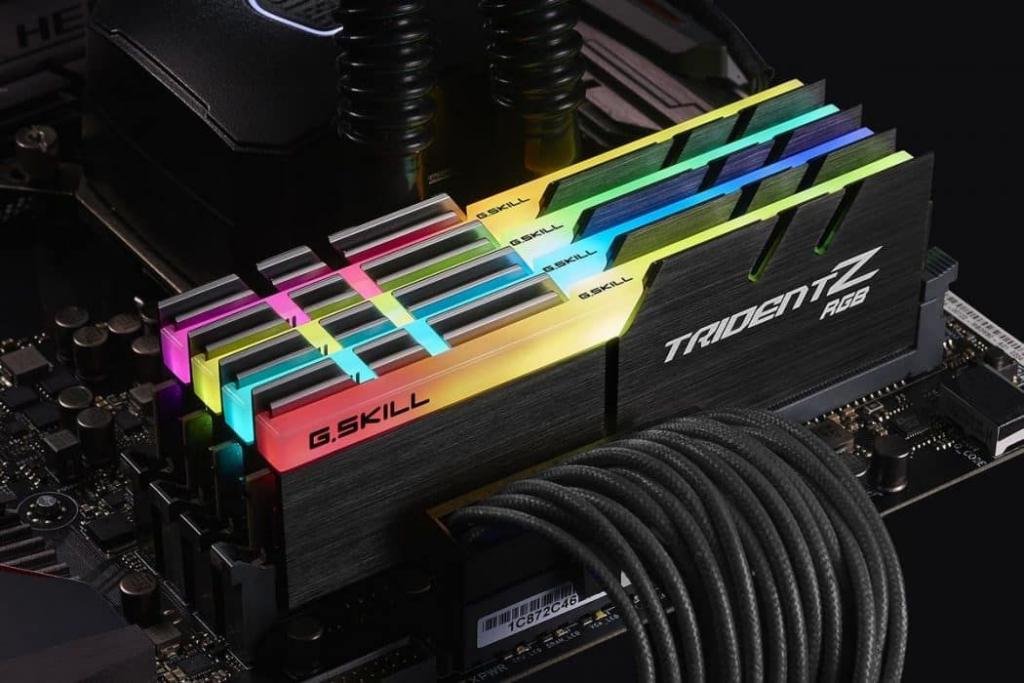
Translating this to the real world: you may have bought 3200 MHz RAM, but your PC is using it at 2133 MHz. That’s literally less than half the speed you paid for.
Why does this matter?
RAM doesn’t just affect the number of programs you can open at the same time. It also directly influences the speed at which the processor can access data — and this shows up in everyday tasks: opening the browser, loading files, compiling code, editing photos, or playing games.
In games, especially those that heavily rely on the CPU (such as simulations, strategy, and open-world games), the difference between RAM running at 2133 MHz and the same RAM at 3600 MHz can be 10% to 20% in frames per second. In some titles, it’s even more.
How to check if your RAM is running at the right speed.
Fortunately, this is easy to verify. You don’t need any special programs—Windows already tells you this.
Through Task Manager:
- Press
Ctrl + Shift + Escto open Task Manager. - Click on the Performance tab.
- Select Memory from the side menu.
- Look at the Speed field.
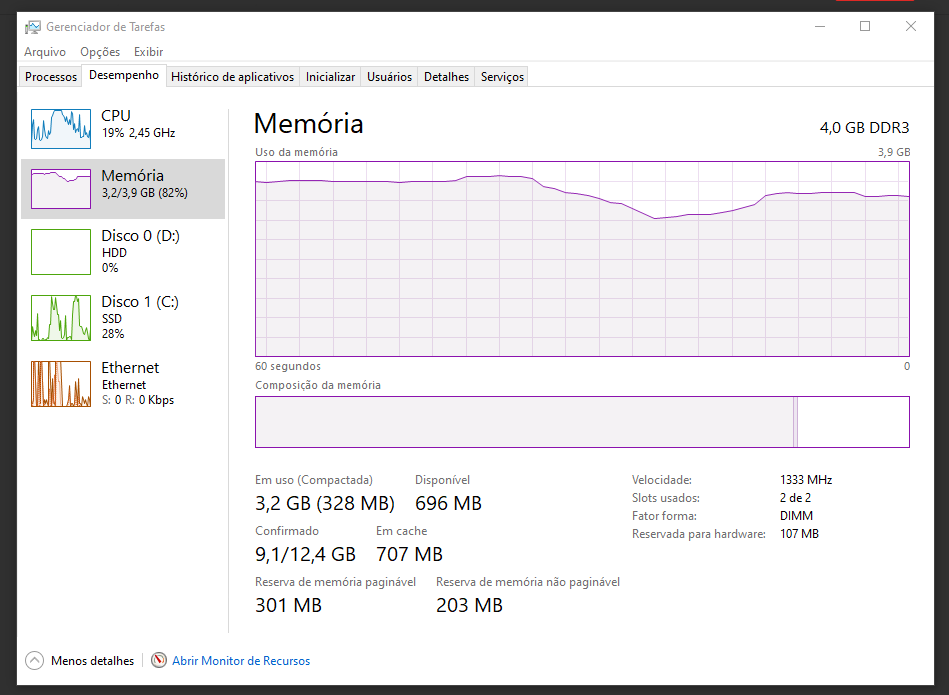
If the number displayed is lower than what is written on the packaging or in the specifications of your RAM module, your memory is running below its potential.
You can also use free programs like CPU-Z, which show even more complete details about the memory.
How to fix: by enabling XMP or EXPO
The solution lies in your motherboard’s BIOS. It sounds technical, but it’s simpler than it seems.
General step-by-step guide:
- Restart your PC and press the key that opens the BIOS (usually
Del,F2orF12— appears on the screen right after turning it on). - Look for an option called XMP , XMP Profile , or EXPO (the name may vary by manufacturer).
- Activate the available profile — usually called “Profile 1”
- Save and restart
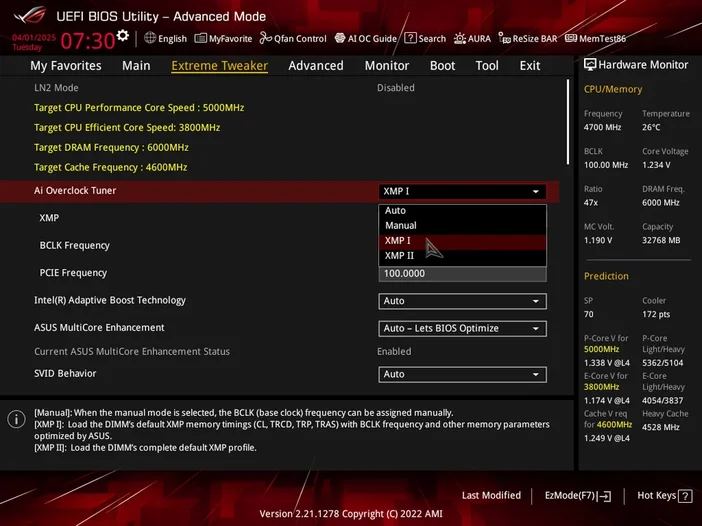
Done. The PC will restart using the actual speed for which your RAM was designed. You can double-check in Task Manager to confirm.
It’s worth highlighting: what to expect
In most cases, enabling XMP/EXPO is completely safe. The profiles are tested by the memory manufacturer and certified to work within the hardware’s limits. It’s not “wild” overclocking — it’s simply using what you’ve already paid for.
On older PCs or very specific configurations, the system may become unstable. In that case, simply return to the BIOS and disable the profile. No permanent damage will be caused.
Conclusion
If you’ve never heard of XMP or EXPO, it’s very likely that your PC has been running with significantly less RAM than it’s capable of delivering for months—or years. The check takes less than a minute. The fix, less than five.
It’s one of those simple settings that makes a real difference, and that most people never discover because nobody told them it needed to be done.
Now you know. It’s worth checking out.
Frequently Asked Questions:
1. What is XMP and what is it used for? XMP (Extreme Memory Profile) is a configuration profile saved directly in RAM that allows the processor and motherboard to operate the memory at the frequency for which it was manufactured. Without enabling XMP, the system ignores these settings and runs the RAM at the standard JEDEC frequency, which is usually half the speed advertised on the packaging.
2. How do I know if my RAM is running below the correct speed? Open CPU-Z (free), go to the “Memory” tab and check the “DRAM Frequency” field. The displayed value is half the actual speed — so if it shows 1600 MHz, your RAM is running at 3200 MHz. If the number is much lower than the speed advertised on the packaging, XMP is not enabled.
3. Can enabling XMP damage my RAM or motherboard? No. XMP is an official profile certified by the memory manufacturer — enabling it simply means using the RAM at the speed it was designed and tested for. The risk is virtually zero in configurations within the standard XMP profile, without additional manual overclocking.
4. Why doesn’t RAM come configured at its maximum speed from the factory? By default, the JEDEC specification — adopted by the industry — defines conservative frequencies to ensure universal compatibility between any processor and motherboard. RAM manufacturers sell memory with XMP profiles that exceed this standard, but leave activation up to the user to avoid compatibility issues in older configurations.
5. Does enabling XMP improve gaming performance? Yes, especially in games that heavily rely on the CPU. AMD Ryzen processors are particularly sensitive to RAM speed — the difference between 2133 MHz and 3600 MHz can represent up to a 15–20% FPS gain in titles like CS2, Valorant, and open-world games. On Intel, the difference is smaller, but still noticeable.
6. Are XMP and EXPO the same thing? They are equivalent, but from different manufacturers. XMP is Intel’s standard, while EXPO (Extended Profiles for Overclocking) is AMD’s standard, introduced with the AM5 platform and Ryzen 7000 processors. Functionally, they do the same thing—they activate the high-frequency memory profile. Most modern RAM supports both profiles.
7. How do I enable XMP on my motherboard? Restart your PC and enter the BIOS by pressing Delete, F2, or F12 during startup (this varies by manufacturer). Look for “XMP”, “EXPO”, or “DOCP” in the memory settings — usually within “AI Tweaker”, “OC”, or “Memory” depending on the motherboard brand. Select the available XMP profile, save with F10, and restart. The process takes less than two minutes.
8. My motherboard doesn’t have an XMP option in the BIOS. What should I do? Entry-level or very old motherboards may not support XMP. In this case, it’s possible to manually configure the RAM frequency and timings in the advanced BIOS settings, using the values specified on the memory label or the manufacturer’s website. If the board truly doesn’t support it, the only definitive solution is to upgrade the motherboard.
9. Can I enable XMP on only one RAM stick? Technically yes, but it’s not recommended. Ideally, all installed RAM sticks should be of the same model and manufacturer to ensure stability in the XMP profile. Mixing different brands or models can cause instability, crashes, or prevent the XMP profile from being recognized correctly.
10. After enabling XMP, the PC became unstable or won’t boot. What to do? Enter the BIOS again and temporarily disable XMP for the system to return to normal. This mainly happens when the RAM is incompatible with the XMP profile on that specific motherboard. Check the QVL (Qualified Vendor List) for your motherboard on the manufacturer’s website to confirm if the RAM model is officially approved. If it is compatible, try selecting a lower frequency XMP profile if more than one option is available.