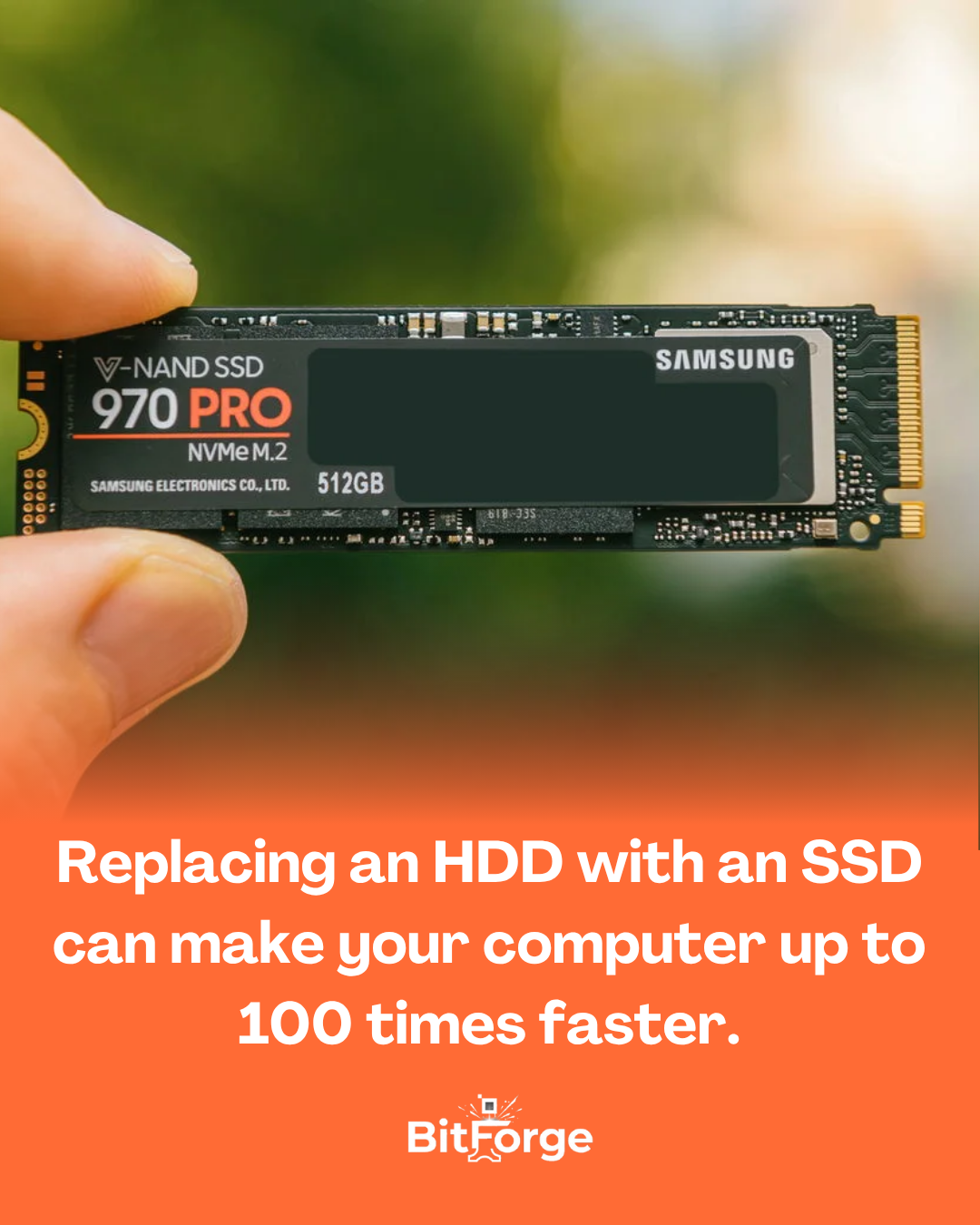

If your computer seems slow to start up, open programs, or even load simple files, there’s a good chance the bottleneck is your storage. And the solution might be simpler than it seems: replace your hard drive with an SSD.
For decades, computers have used hard disk drives (HDDs) to store data. The problem is that they work with mechanical parts : spinning disks and a physical arm that needs to move to find each file. This process takes time—even if it’s fractions of a second.
Solid State Drives (SSDs), on the other hand, are completely different.
They use flash memory , similar to that of a USB drive, which means they have no moving parts . Data is accessed electronically, almost instantly.
And that’s where the big difference in performance lies.
A typical hard drive (HDD) usually has read speeds of around 80 to 160 MB/s .
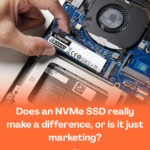
An SSD, on the other hand, can easily reach 500 MB/s , while more modern SSDs (NVMe) exceed 3,000 MB/s .
But the gain isn’t just in the raw transfer speed.
The biggest advantage lies in the file access time . A hard drive can take milliseconds to locate data because it needs to move the mechanical arm to the correct location on the disk. An SSD accesses it virtually instantly .
In practice, this can result in huge differences:
- A computer that used to take 2 minutes to start up could now start up in 10–15 seconds.
- Resource-intensive programs open almost instantly.
- The whole system seems much more fluid.
In certain specific tasks, especially when many small files are being accessed, an SSD can be up to 100 times faster than a traditional HDD .
That’s why many experts say that replacing an HDD with an SSD is the upgrade that most transforms a computer — often more noticeable than increasing RAM or even changing the processor.
In other words, before even thinking about buying a new computer, sometimes all it needs is to replace a single component.
And the difference is so big it feels like you’ve got a brand new machine . 🚀
Frequently Asked Questions:
3. Which everyday tasks show the biggest difference after switching from an HDD to an SSD? Operating system startup is the most immediate and dramatic—a Windows system that took two or three minutes to fully boot on an HDD can be ready for use in less than fifteen seconds with an SSD. Opening heavy programs like browsers with many extensions, office suites, email clients, and editing software completely changes the experience—what used to take thirty seconds or more now happens in two or three seconds. In games, loading times for levels and maps drop drastically. Multitasking with several programs open simultaneously becomes much smoother because the operating system uses storage as virtual memory when RAM is full, and the speed of the SSD makes this process almost imperceptible. Any task that involves frequent access to files—and practically everything on a computer does—benefits from the switch.
4. Is it worth replacing an old computer with an SSD, or is it better to buy a new PC? In most cases, it’s definitely worth it, and this is one of the most consistent recommendations among technicians and hardware enthusiasts. A PC with a processor from four to eight years ago that was practically unusable due to the slowness of a mechanical hard drive can be transformed into a fully functional machine for everyday use with the simple replacement of an SSD. The processor, RAM, and other components often still have enough capacity for everyday tasks—browsing, documents, video conferencing, streaming—and the hard drive was the only real bottleneck preventing the system from functioning well. Before discarding an old computer or investing in a new one, replacing the hard drive with an SSD is almost always the first experiment worth doing, given that the cost is relatively low and the impact can be transformative.
5. Is there a noticeable difference between SATA SSDs and NVMe SSDs for the average user? For most everyday tasks, the difference between SATA and NVMe is much smaller than the difference between any SSD and a mechanical hard drive. The jump from hard drive to SATA already eliminates the main bottleneck that slows down the computer—the mechanical latency of the hard drive. The additional jump from SATA to NVMe delivers much higher speeds on paper, but the practical impact on everyday use is smaller because most everyday operations cannot take full advantage of the additional bandwidth that NVMe offers. Where NVMe clearly excels is in large file transfers, professional video editing, and open-world games that continuously load assets. For a user who will use the PC for office work and general use, a quality SATA SSD already represents a complete transformation compared to a hard drive.
6. Does replacing an HDD with an SSD affect the computer’s lifespan or cause any problems? The replacement itself doesn’t cause any problems and can actually extend the system’s lifespan in several ways. SSDs have no moving parts, eliminating the risk of mechanical failure, one of the most common causes of HDD failure—a drop, an impact, or simply the wear and tear of moving parts over time. The absence of mechanical parts also means that the SSD is silent and generates less heat than an operating HDD, contributing slightly to a better thermal environment inside the case. The only real precaution is to ensure the PC has a power supply in good condition, as SSDs are sensitive to voltage variations that old or low-quality power supplies can cause—but this is a valid recommendation for any modern component.
7. How to migrate from HDD to SSD without losing data or reinstalling Windows? There are two main approaches, and the choice depends on the user’s preference. The first is cloning — using free software like Macrium Reflect or the proprietary application from some SSD manufacturers, it’s possible to copy all the contents of the HDD to the SSD identically, including the operating system, installed programs, and personal files. The result is a system running on the SSD exactly as it was on the HDD, without needing to reinstall anything. The second approach is to take the opportunity to do a clean install of Windows on the SSD, migrating only personal files manually. This second option is more laborious but results in a cleaner system, without the accumulation of years of temporary files and unnecessary programs that are often present in older installations.
8. How long does an SSD last, and is data safe for many years? Modern, high-quality SSDs have more than adequate durability for normal home use. Lifespan is measured in TBW — terabytes written — and a mid-range SSD supports hundreds of terabytes of writes over its lifetime, which for the average home user easily translates to ten years or more of normal use. The main limitation of SSDs in terms of longevity is data retention without power — flash memory cells can lose data if left without power for very long periods, something that is rarely a problem for those who use their computer regularly. For long-term storage of critical data without regular use, external HDDs or cloud storage are still more suitable. For daily use as the operating system disk, the SSD is the clearly superior choice in all aspects.
9. Is it worth keeping the old HDD along with the new SSD in the same computer? It’s definitely worth it and is one of the smartest configurations a user can adopt. The ideal strategy is to use the SSD as the primary drive where the operating system and most frequently used programs are located—taking advantage of its speed for tasks that most impact the user experience—and keep the HDD as a secondary drive for storing files that don’t require high speed, such as photos, videos, music, and old documents. This combination delivers the best of both worlds—the speed of the SSD for what matters and the large, inexpensive storage capacity of the HDD for what doesn’t need speed. A 500GB SSD for the system combined with a 1TB or 2TB HDD for storage is a configuration that efficiently and economically meets the needs of the vast majority of users.
10. So, is replacing an HDD with an SSD the best upgrade an old PC can receive? For most computers over three or four years old running with a mechanical HDD, yes — it’s the best cost-effective upgrade available on the hardware market, with no close competition. No other component delivers such a dramatic and immediate transformation in user experience for a relatively small investment. Adding RAM improves multitasking. Replacing the processor improves performance in demanding tasks. But none of these upgrades eliminates the daily frustration of waiting for the system to boot up, programs to open, and files to load the way an SSD switch does. It’s the upgrade that completely changes the perception of the computer — from a slow and frustrating machine to a responsive and enjoyable system to use. Any experienced technician who receives a slow computer with a mechanical HDD will recommend switching to an SSD as their first recommendation, and that recommendation rarely disappoints.