
Is your PC crashing at the wrong time? Opening programs at a snail’s pace? Before you rush out and buy a new computer, take a breath. In most cases, a few targeted hardware upgrades can transform an average machine into something much more capable—for a fraction of the price of a new computer. The list below ranges from the most affordable to the most robust investment. Choose what makes sense for you right now.
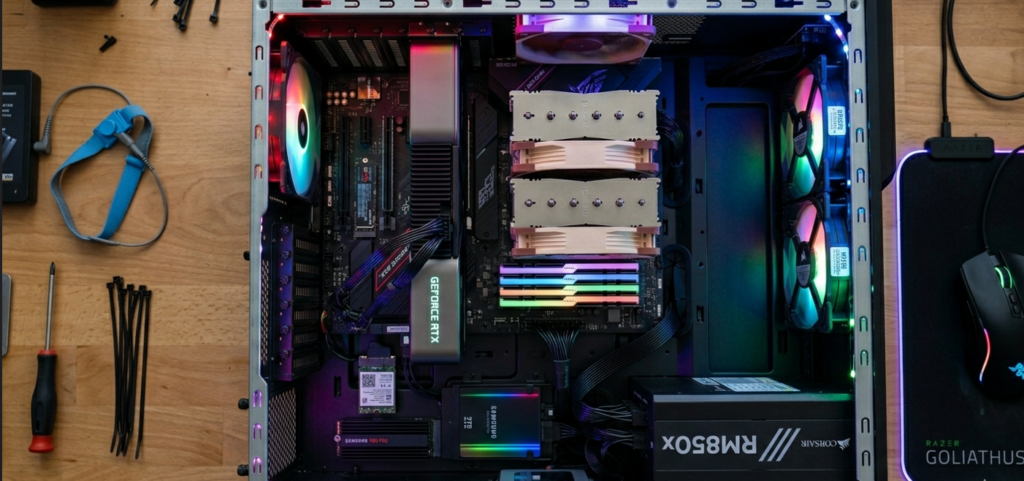
Upgrades, in order of investment:
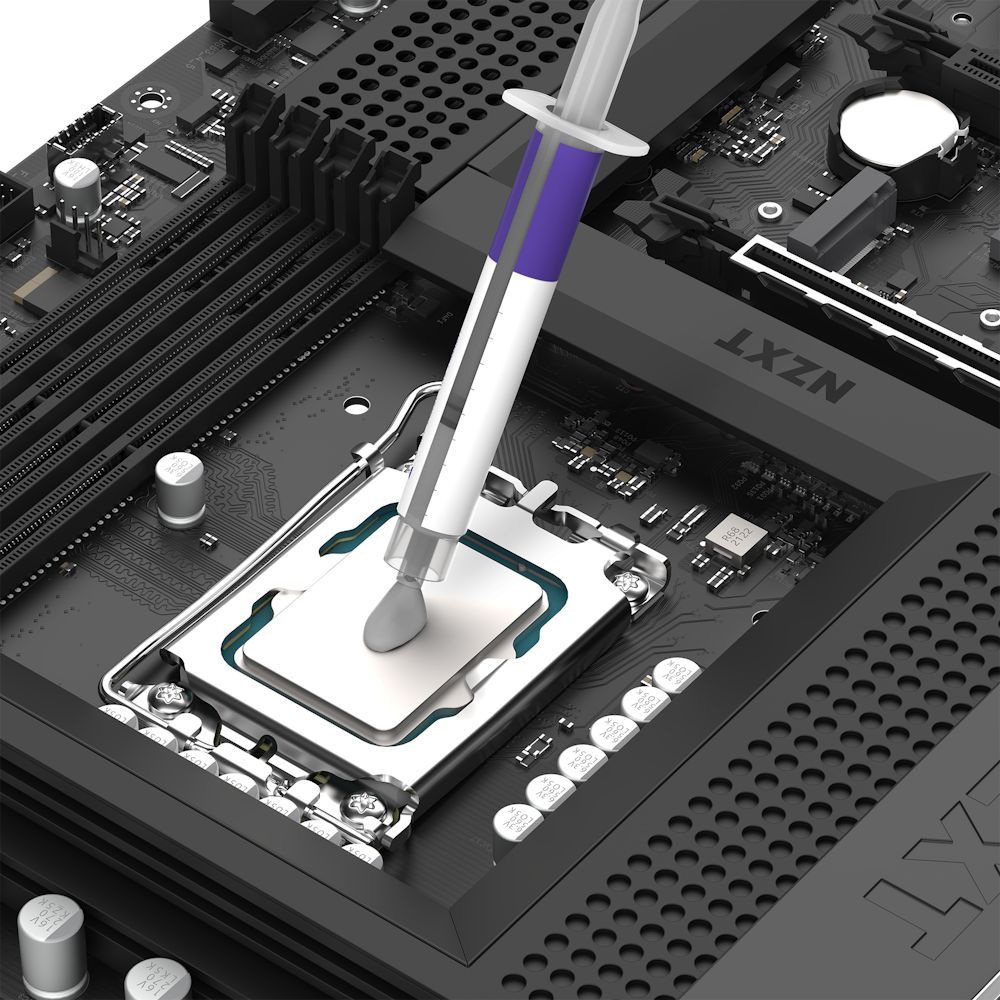
1 – Thermal paste (Cheapest option):
One of the cheapest and most overlooked upgrades. The thermal paste between the processor and the cooler dries out over time, causing the PC to overheat and freeze. Reapplying it costs only a few dollars and can reduce the temperature by 10°C or more. If your PC is more than 3 years old and has never been serviced, this is the first step.
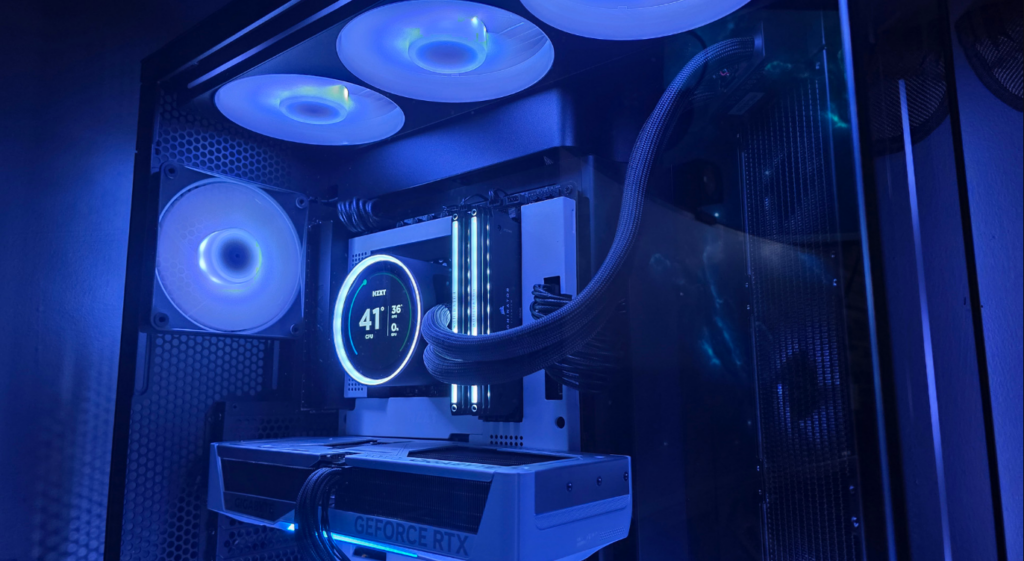
2 – Cleaning and replacing the CPU cooler (Low Cost):
Dust buildup in fans and heatsinks clogs airflow and causes overheating. A thorough cleaning with compressed air, followed by a better cooler, solves performance problems that many people attribute to “weak hardware.” Aftermarket coolers offer far superior cooling to those that come in the processor box.
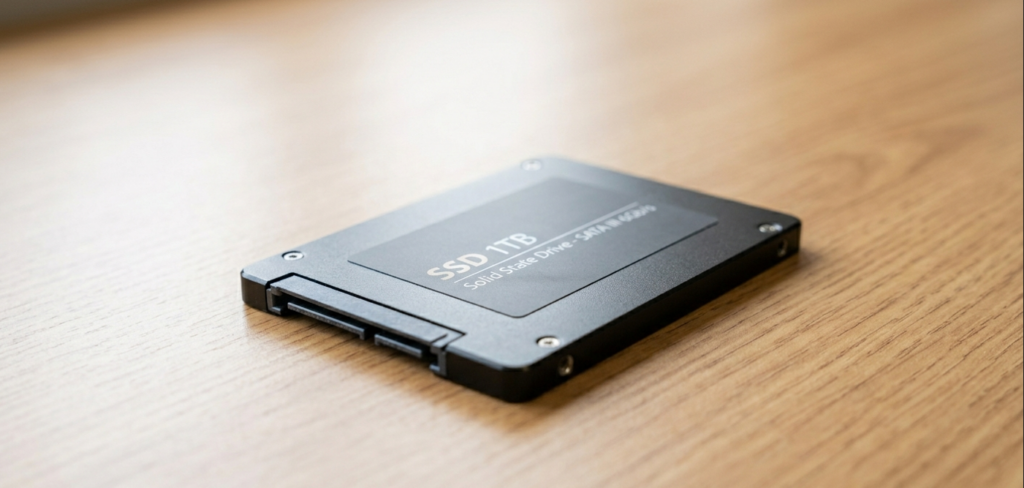
3- Storage: Replace HDD with SSD (Low Cost):
This is probably the upgrade with the biggest noticeable impact on daily use. Replacing a mechanical hard drive with an SSD makes Windows boot in seconds instead of minutes, programs open almost instantly, and the system becomes much more responsive. It’s the most recommended upgrade for any PC with an old hard drive.
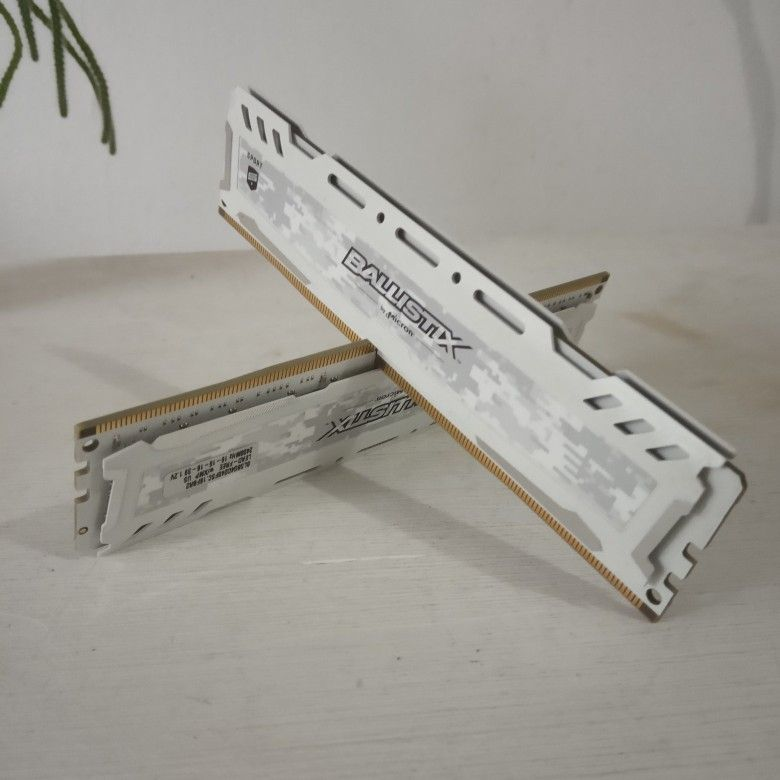
4 – More RAM (Average Cost)
If your PC freezes when you open many browser tabs, edit documents while listening to music, or run modern games, you probably need more RAM. In 2026, the minimum comfortable amount for general use is 16 GB. For video editing or demanding games, 32 GB already makes a real difference.
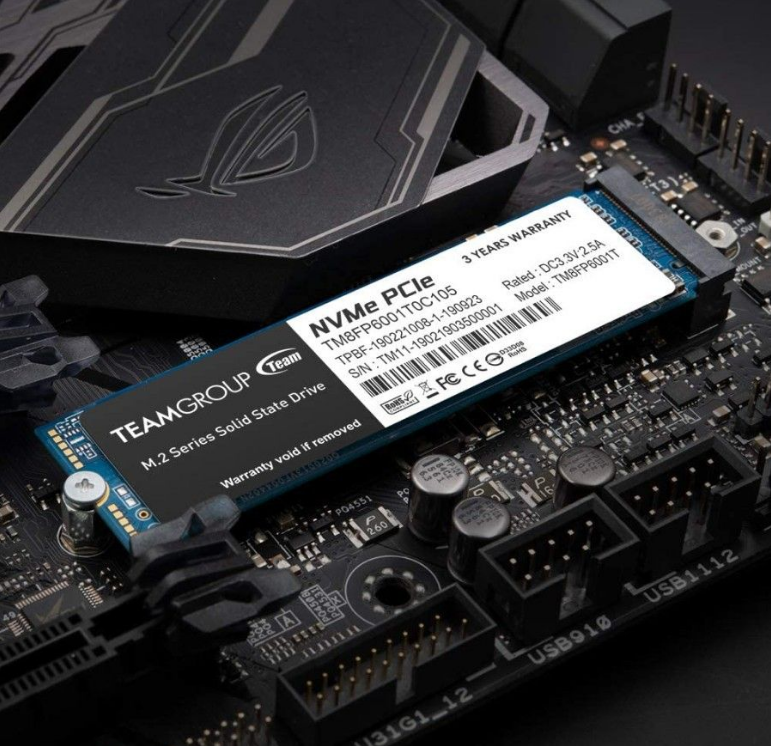
5 – NVMe SSD (SATA SSD upgrade) – (Average cost):
Already have an SSD but want more speed? NVMe SSDs, which plug directly into the motherboard, are significantly faster than regular SATA SSDs. For those who work with large files, video editing, or frequent backups, the difference is real and noticeable in everyday use.
6 – Monitor with a higher refresh rate (Average cost):
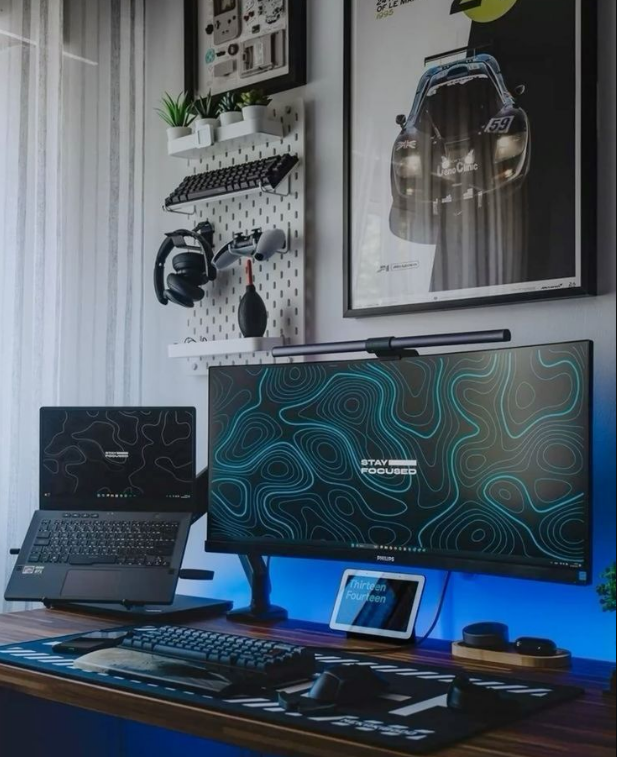
A 144Hz or 165Hz monitor makes on-screen movement seem much smoother than a 60Hz monitor, even if the other components are the same. For gaming and even for work with a lot of scrolling, the visual difference is immediate. A good new monitor can “renew” the feeling of the entire PC.
7 – Most efficient power supply – (Average Cost)
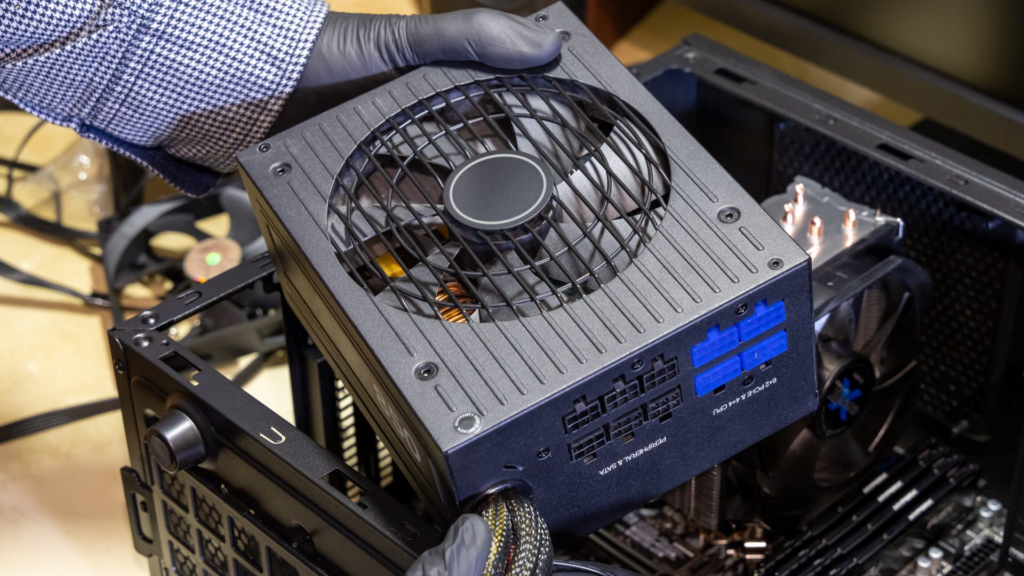
Cheap or old power supplies waste energy, generate more heat, and can damage components with voltage drops. Switching to a power supply with efficiency certification (such as 80 Plus) ensures stable power, quieter operation, and, in some cases, savings on your electricity bill. It’s an underestimated component that protects everything else.
8 – Dedicated graphics card (or GPU upgrade) – (High Cost):
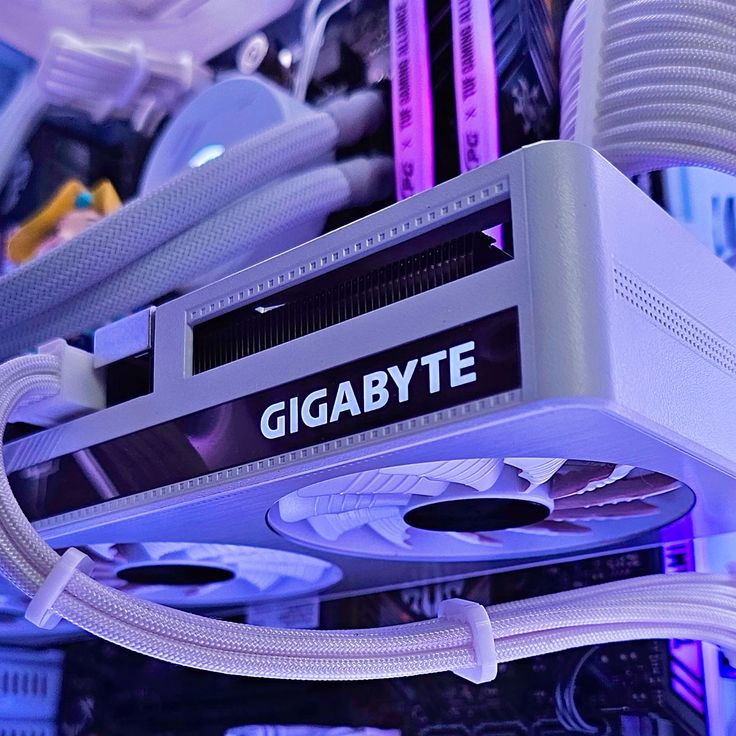
For those using integrated graphics, a dedicated video card completely changes the experience with games, photo editing, videos, and even AI-related tasks. For those with an older GPU, an upgrade here is the main factor responsible for improved performance in modern games and creative applications.
9 – New processor (same platform) (High Cost):
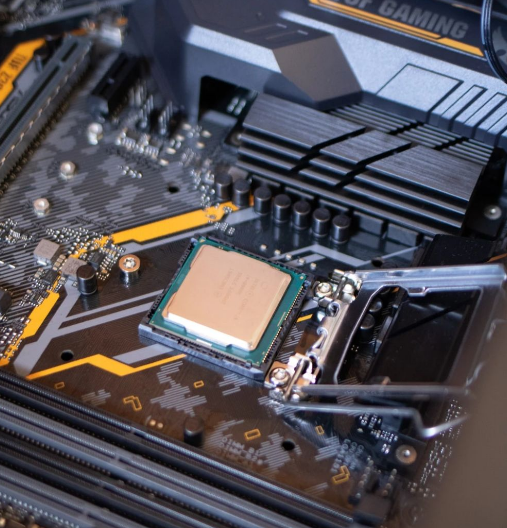
If your motherboard still supports newer processors, a CPU upgrade can unlock significant performance without having to replace everything. Check compatibility with your motherboard before buying. It’s one of the most impactful upgrades for those who use their PC for heavy workloads, code compilation, or intense multitasking.
10 – Full platform upgrade – (Most expensive):
When the CPU, motherboard, and RAM all need to be replaced together, we’re talking about a platform upgrade. It’s the highest investment on the list, but also the one that delivers the biggest generational leap. It makes sense when the PC is 6 to 8 years old or more and the components are incompatible with modern hardware.
How do you decide where to start?
The general rule is simple: identify the bottleneck. If your PC is slow in everyday tasks (opening files, browsing, booting up), an SSD or RAM upgrade will solve the problem. If it freezes during games or video editing, focus on the GPU. If it overheats and shuts down on its own, start by cleaning and replacing thermal paste. Replacing the processor won’t help if you still have an old hard drive—the impact will be minimal.
Upgrading your PC in stages is much smarter than buying a new machine without planning. With the right order of investment, you can transform a 4 or 5-year-old computer into something capable of running virtually anything that 2026 has to offer.
Start with the cheapest option, feel the difference, and only move up the list when you need it.
Frequently Asked Questions:
1. What is the cheapest PC upgrade that provides the greatest performance gain?
Adding or replacing an SSD is undoubtedly the most cost-effective upgrade for most users. Replacing a traditional HDD with an NVMe SSD completely transforms the computer user experience — the system boots up in seconds, programs open almost instantly, and overall browsing becomes much smoother. The impact is so great that many people describe the feeling as if they bought a new PC, even without replacing any other components.
2. Is it worth adding more RAM before upgrading the processor?
In most cases, yes. If your PC has 8GB of RAM, upgrading to 16GB usually provides a greater and more immediate performance gain than changing the processor, especially for those who use their computer for everyday tasks, browsing with multiple tabs open, and playing modern games. The processor should only be a priority if it is clearly the identified bottleneck—which can be verified by monitoring CPU usage during tasks that cause the PC to freeze.
3. When is it worthwhile to replace the graphics card instead of other components?
The graphics card should be prioritized when the main goal is gaming or work involving rendering, video editing, and 3D modeling. If games are running with low FPS even on reduced settings, or if creative software is taking too long to process, the GPU is likely the bottleneck. Outside of these cases, other upgrades tend to bring more benefit to everyday computer use.
4. Does replacing the processor cooler really make a difference in performance?
Yes, especially with processors that come with a stock cooler. Better coolers keep the processor temperature lower, allowing it to operate at maximum frequency for longer without slowing down to protect itself from heat—a process called thermal throttling. A good aftermarket cooler can result in real performance gains without replacing any more expensive components, and will also make the PC significantly quieter.
5. Is it possible to improve PC performance without spending any money?
Yes. Enabling the XMP or EXPO profile in the BIOS to ensure RAM is running at the correct frequency is completely free and can yield up to 15% performance gains in games. Additionally, physically cleaning the PC by removing dust from the fans and heatsink improves temperature and prevents thermal throttling. Reinstalling the operating system with a clean install also eliminates years of unnecessary software buildup that consumes resources in the background.
6. What is the difference between upgrading from a SATA SSD to an NVMe SSD, and which one should I choose?
SATA SSDs use the same interface as traditional HDDs and already represent a huge leap compared to mechanical HDDs. NVMe SSDs use the PCIe interface, which is much faster—up to 5 times faster than SATA in read and write speeds. For most users, the practical difference in everyday use is small between the two types of SSDs, but for those who work with large files, video editing, or games with long loading times, NVMe is clearly the better choice if the motherboard supports it.
7. Does upgrading the power supply make it onto the list of worthwhile improvements?
Yes, it’s necessary, but only in specific situations. If the current power supply is old, low quality, or at the limit of its capacity for the installed components, replacing it is essential for the stability and safety of the system. An undersized power supply can cause crashes, unexpected shutdowns, and even damage other components over time. It’s not an upgrade that directly improves performance, but it’s fundamental before installing a more powerful graphics card or a more demanding processor.
8. How do I know if it’s more worthwhile to upgrade or buy a new PC?
The general rule is: if the processor and motherboard are still relatively modern and support current memory and storage, upgrades are worthwhile. If the processor is more than 8 years old, the platform doesn’t support DDR4 or DDR5, and the motherboard doesn’t have M.2 slots for NVMe SSDs, the total cost of the necessary upgrades will likely approach the value of a new PC with significantly higher performance. In that case, it’s worth starting from scratch with a current platform.
9. Do PC upgrades improve performance in remote work and video conferencing?
Yes, especially RAM and storage. Video conferencing with screen sharing consumes a lot of memory, and having 16GB instead of 8GB eliminates freezes and slowdowns during meetings. An SSD ensures that the system and communication applications open quickly. For those who work with presentations, heavy spreadsheets, or intense multitasking, these two upgrades have a direct and immediate impact on daily productivity.
10. Is there a recommended order for upgrading a PC intelligently?
Yes, there is a logical order to follow to avoid wasting money. The most recommended approach starts with the SSD, then RAM, then a cooler if there are temperature issues, and only then the GPU or CPU depending on the main use. This sequence works because each step removes a real bottleneck before investing in more expensive components. Replacing the GPU in a PC with 8GB of RAM and a mechanical hard drive, for example, will be disappointing—the other components will limit the potential of the new card anyway.