
You’ve been through this before: you invest in a good processor, put in plenty of memory, maybe even a respectable video card… and yet the computer acts like it’s running on sand. It takes a long time to open programs, stutters on simple tasks, or just “thinks” for no apparent reason.
It feels almost like buying a sports car… and discovering that it’s driving with the handbrake on.
The truth is that performance doesn’t depend solely on individual components. It’s an ecosystem. And when something in that system is misaligned, the final result suffers.
Let’s break this down in a simple way.
1. Bottleneck: when one part blocks the rest.
One of the most common problems is the infamous “bottleneck”.
Imagine a line where everyone is walking fast, except for one person at the front. No matter how fast the others are, the overall pace will be slow.
On a PC, this happens when one component limits the others. For example:
- A powerful processor with little RAM.
- A powerful graphics card with a weak processor.
- A fast SSD, but with a poorly optimized system.
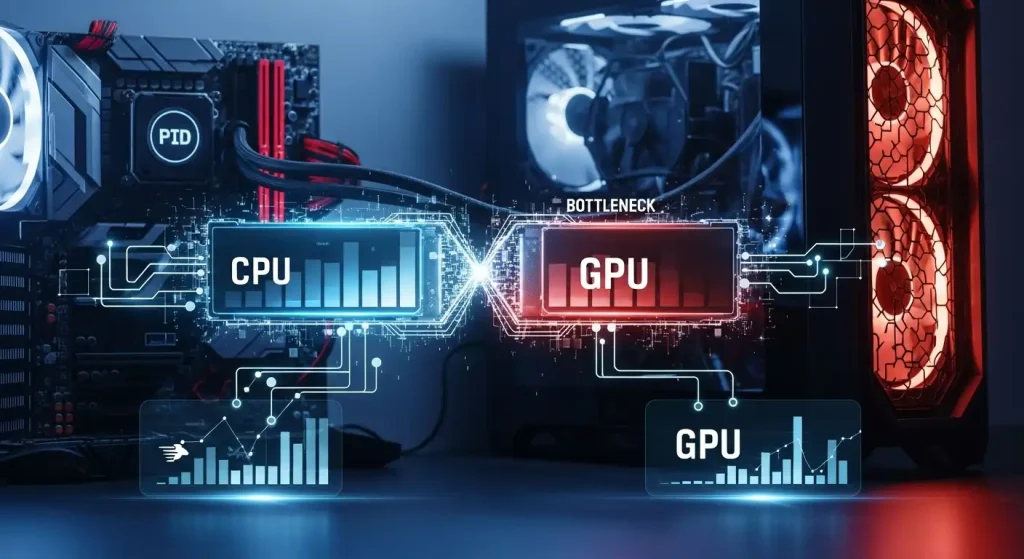
The system always runs at the speed of the slowest component at that moment.
2. Storage makes a HUGE difference.
Many people underestimate this.
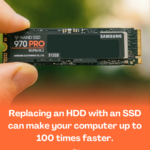
If the system is installed on a traditional hard drive, even with good components, the overall performance will seem slow. This is because the hard drive is much slower at accessing data.
An SSD completely changes the user experience:
- Faster startup
- Programs opening almost instantly.
- Fewer crashes
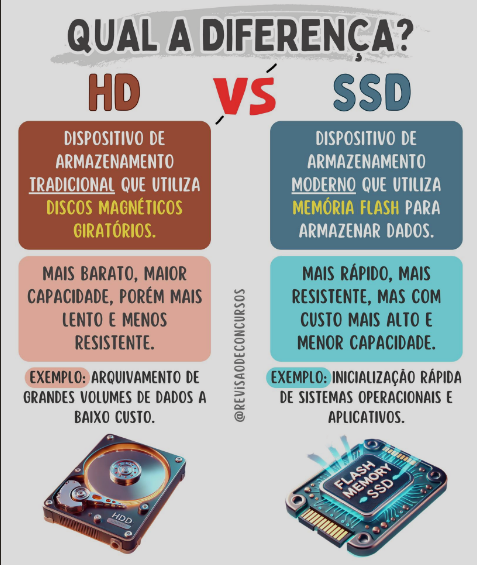
In other words, sometimes the problem isn’t “power,” it’s access to the data.
3. Overloaded operating system
Your PC might be fine… but the system is a mess.
Over time, the system accumulates:
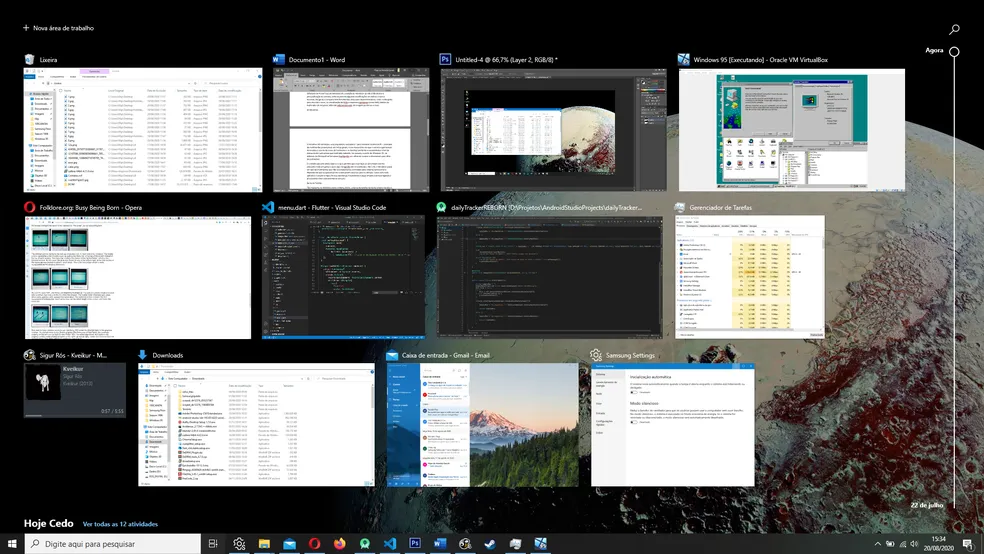
- Programs that start up with Windows
- Services running in the background
- Poorly optimized updates
- Temporary files
All of this consumes resources without you realizing it.
It’s like carrying a backpack full of useless things. You can still walk, but you’re slower.
4. Temperature: the invisible enemy
This is one of the most overlooked.
When a PC overheats, it automatically reduces performance to prevent damage. This process is called “throttling”.
In other words, your hardware may be powerful… but it’s being limited to prevent it from overheating.
Common signs:
- Drop in performance during gaming or demanding tasks.
- Very noisy fans
- Freezing after some time of use.
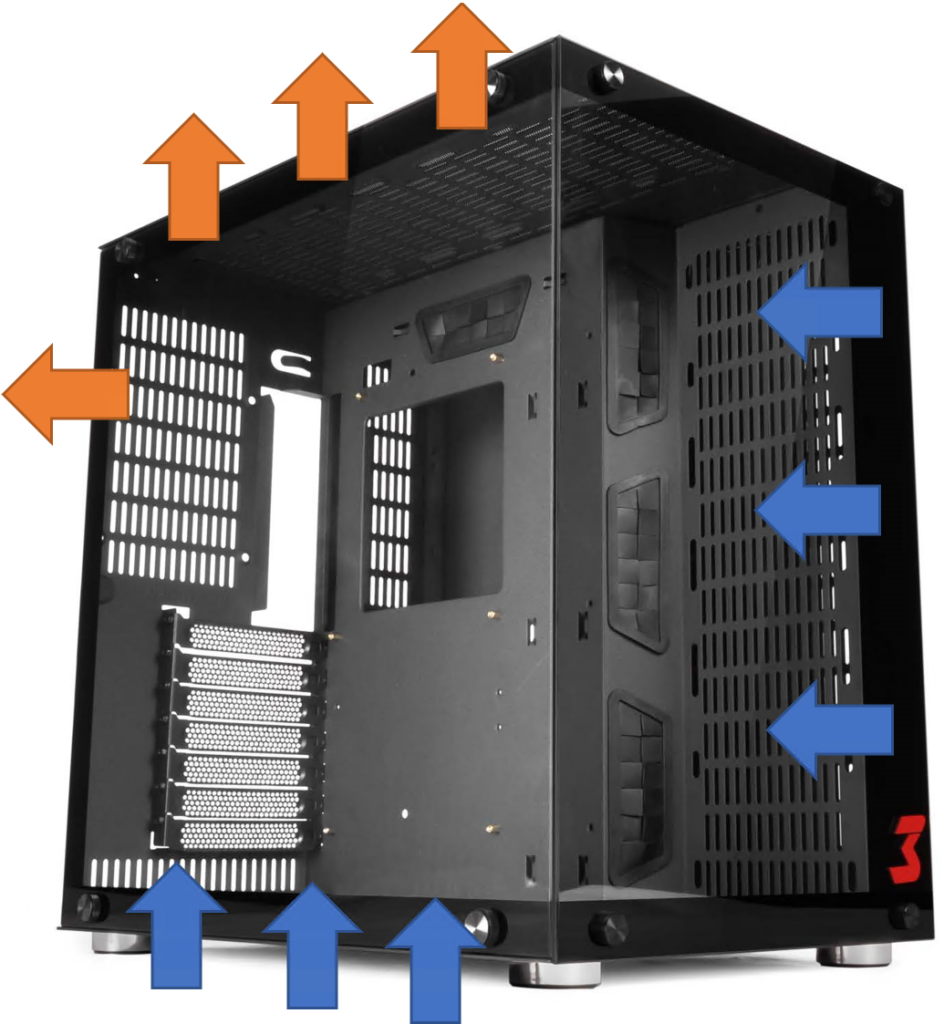
This is where factors like the following come into play:
- Accumulated dust
- old thermal paste
- Poor airflow in the case.
5. Drivers and updates
It may seem like a small detail, but it makes a difference.
Outdated or improperly installed drivers can cause:
- Loss of performance
- Incompatibilities
- Strange freezes
The same applies to the operating system.
It’s not about blindly updating everything, but about keeping the basics working well.
6. Improper use of hardware
Sometimes the problem isn’t the PC itself… it’s how it’s being used.
Common examples:
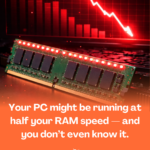
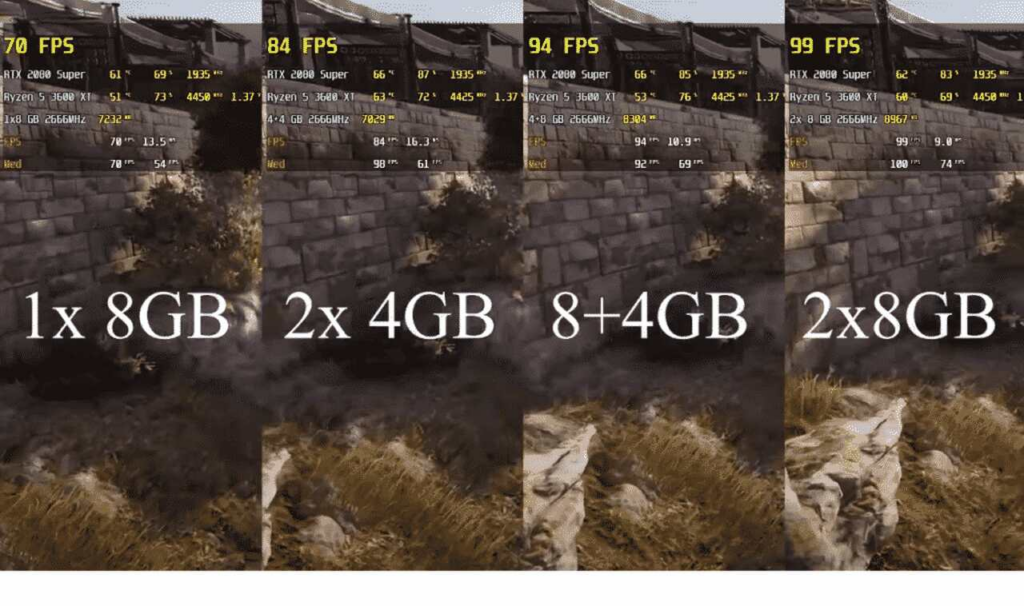
- Using RAM in single channel mode (results in performance loss)
- Installing resource-intensive programs on a slow hard drive.
- Incorrect settings in games or software
Small technical details can greatly impact the final result.
7. Expectation vs. Reality
Here’s an important point.
Having “good parts” doesn’t mean everything will run perfectly in every situation.
For example:
- A PC that’s good for general use may struggle with very demanding tasks.
- Newer games demand more than it seems.
- Intense multitasking requires a balance between CPU, RAM, and storage.
Sometimes the problem isn’t that the PC is slow… it’s that the load is greater than it can comfortably handle.
Conclusion
If your PC seems slow even though it has good components, the problem is rarely a single thing.
It’s usually a combination of factors:
- Bottlenecks between components
- Slow storage
- Overloaded system
- High temperature
- Poorly optimized configuration
The secret lies in looking at the whole picture, not just the individual power of each piece.
A fast PC isn’t just powerful. It’s balanced, well-configured, and runs smoothly.
And when all of this comes together… the difference is absurd.
Frequently Asked Questions:
1. How is it possible for a PC with good components to be slow in practice?
This is one of the most frustrating and common situations among computer users—investing in quality components and still feeling that the computer doesn’t respond as it should. The explanation lies in the fact that real performance is the result of a set of factors working in harmony, not just the individual quality of each part. A powerful processor limited by slow RAM, a fast SSD with outdated Windows full of programs at startup, or a powerful video card receiving data from a bottleneck in another component—each of these scenarios can make an expensive PC seem like an entry-level computer. Good hardware is the starting point, not a guarantee of a fast system.
2. What is a bottleneck and how does it affect PC performance even with good components?
Bottleneck is the term used to describe a situation where a slower component limits the potential of a faster component in the system. It works like a chain—the total resistance is defined by the weakest link, not the strongest. A classic example is having a state-of-the-art processor combined with old RAM running at a low frequency—the processor will be waiting for data that the RAM cannot deliver quickly enough. Another common example is a powerful video card connected to an older generation PCIe slot that limits the available bandwidth. Identifying which component is causing the bottleneck is the first step in resolving the slowdown without spending unnecessary money.
3. Can the operating system slow down a PC with good components?
Absolutely, and this is one of the most underestimated factors by users. Over time, Windows accumulates a huge amount of temporary files, unnecessary registry entries, background services, and programs that install themselves at system startup without permission. A PC that’s a few years old and hasn’t had regular operating system maintenance can have dozens of processes consuming RAM and processor cycles in the background without the user even noticing. A clean Windows installation often completely transforms the user experience, making the PC seem brand new without replacing any parts—it’s one of the most impactful free upgrades available.
4. Could single-channel RAM be the cause of slow performance even with high-quality memory?
Yes, and this problem is more common than it seems. When two RAM sticks are installed in incorrect slots or when only one stick is installed, the memory operates in single-channel mode, which has half the effective bandwidth compared to dual-channel mode. The difference can reach 20% or more in performance in memory-intensive tasks such as gaming, video editing, and intensive multitasking. Checking the motherboard manual to see which slots should be used to activate dual-channel is one of the first things to do when the system seems slower than it should be considering the installed components.
5. Can outdated or incorrect drivers make a good PC seem slow?
Yes, especially graphics card and chipset drivers. Drivers are the software that allows the operating system to communicate correctly with the hardware—when they are outdated or corrupted, the hardware cannot operate at its full potential. A graphics card with an outdated driver can experience FPS drops, crashes, and inconsistent performance in games. Outdated chipset drivers affect communication between the processor, memory, and storage. Keeping drivers updated—especially after a fresh Windows installation or after replacing a component—is a basic maintenance task that many users completely ignore and that has a real impact on perceived performance.
6. Could storage be the cause of slow performance even with a good processor and RAM?
This is one of the most frequent and easiest problems to solve. A PC with a fast processor and plenty of RAM but an old mechanical hard drive will seem slow in practically everything involving file access—opening programs, starting Windows, loading games, and even browsing with many tabs open. The mechanical hard drive is a component with moving physical parts that operates at speeds that simply don’t keep up with the evolution of other components. Replacing the hard drive with an NVMe SSD transforms the user experience immediately and dramatically, often being the upgrade that has the most impact on PCs that seem slow despite having good memory and processor.
7. Can high temperature cause a PC with good components to lose performance?
Yes, and in a silent and insidious way. When the processor or video card reaches temperatures close to the maximum safe limit, they automatically reduce their operating speed to prevent permanent damage—a process called thermal throttling. The user notices the PC freezing, slowing down during periods of heavy load, or experiencing sudden drops in performance, but rarely associates this with temperature because the computer shows no visible warning. A PC with dried-out thermal paste, a cooler clogged with dust, or inadequate case ventilation can perform far below its potential even with excellent components installed.
8. Do having many programs installed and running at startup actually slow down the PC?
They do, and the impact is greater than most people imagine. Every program that adds itself to Windows startup consumes boot time and system resources even after the desktop appears—RAM occupied, processes running in the background, and disk being accessed continuously in the first few minutes after turning on the PC. Heavy antivirus software, game clients, hardware manufacturer applications, cloud synchronization software, and dozens of other programs compete for the same resources right after startup. Reviewing and disabling unnecessary startup programs through the Windows Task Manager is one of the simplest and most effective optimizations any user can perform without any advanced technical knowledge.
9. Could Windows power settings be limiting PC performance?
This is one of the most overlooked and easiest factors to fix. Windows has power profiles that control how the processor operates — in the balanced or power saving profile, the system actively reduces the processor frequency during periods of light load to save energy, and it may take a few milliseconds to increase the frequency when demand suddenly rises. This creates a feeling of slowness and inconsistent response, especially in games and tasks that switch between light and intense periods rapidly. Changing the power plan to high performance or best performance mode in Windows settings solves this immediately at no cost, only with a slight increase in power consumption.
10. What’s the right way to diagnose why a PC with good parts is slow before spending money?
Proper diagnosis begins with monitoring, not buying new components. Free tools like HWMonitor, MSI Afterburner, and Windows Task Manager itself show real-time CPU, GPU, RAM, and storage usage, as well as the temperatures of each component during use. With this information, it becomes much easier to identify the real bottleneck—if the CPU is always at 100% while the GPU is idle, the problem is the processor or how it’s configured. If the RAM is always full, more memory will solve the problem. If temperatures are high, cooling is the issue. Diagnosing before spending is always the smartest approach—often the solution is free and lies in a forgotten setting or a long-overdue cleanup.